Survey Card
Update time:2025-06-06 18:57:34
Surveys are displayed in the manager interface as Survey Cards, with each card representing a single survey.
A Survey Card includes the following key information:
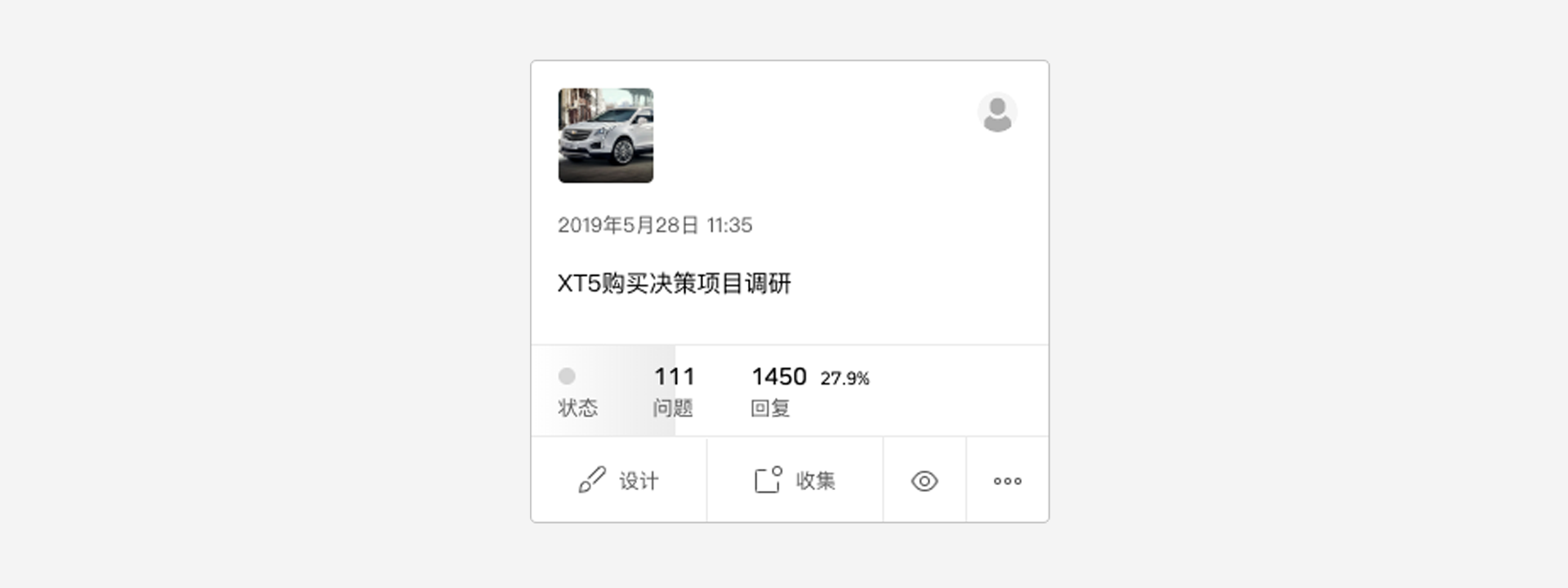
- Survey cover image;
- Information about the survey creator;
- Last edited date of the survey;
- Survey project name;
- Survey status indicator;
- Number of survey questions;
- Total data received and its overall percentage;
- Data collection progress thumbnail: If responses have been collected in the past week, clicking the
data iconwill display the recent weekly data collection progress on the survey card.
At the bottom of the Survey Card is the Survey Card Action Toolbar, which includes the following features:
- Survey Design: Open the survey in the
Survey Editor. - Data Collection: Access the
Data Collectionpage. - Survey Preview: Preview the survey.
- More Options: Click to open additional features, including:
- Favorite: Mark the survey as a favorite.
- Quota: Access the survey
Quotapage. - Data: Access the survey
Datapage. - Duplicate: Copy the survey.
- Move: Move the survey to a specified folder.
- Transfer: Transfer the survey to a specified team.
- Delete: Remove the survey.