Save and Version Control
Update time:2025-06-06 18:57:34
Save Survey
Save your survey to store it securely in the cloud.
To save a survey locally, use the
Exportfeature.
Auto Save
Enable or disable Auto Save functionality. When enabled, your survey will automatically save every 3 minutes.
Survey Versions
During survey development, you may need to revert to an earlier design after making several major changes. To avoid redoing work, you can save the current survey as a Version at important milestones. This allows you to restore previous versions at any time and continue editing from there.
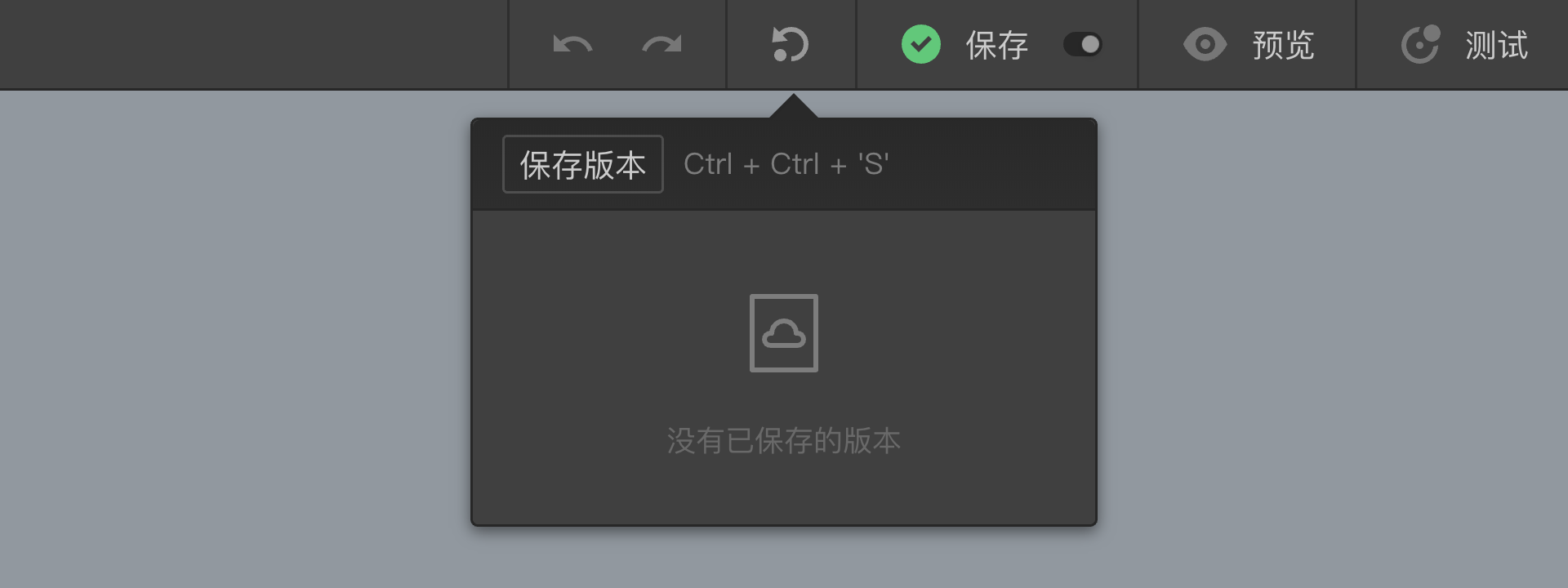
Save a Version
Click the Save Version button in the Survey Publishing toolbar at the top to save the current state of your survey as a version. After saving, the version list will appear below the Save button.

You can save multiple versions of the same survey.
Restore a Version
Click on a version name in the list to restore that version and replace the current survey design.

Edit Version Name
Click the Edit button to modify the name of a saved version.
Delete Version
Click the Delete button to remove a saved version.